
Episode 1: Why the command line
Why a researcher might move from AI chat in a browser tab to an AI agent on the command line: what the command line is, the same task done both ways, why an agent can do more in your own files, and what stays with you.
Downloads
AI for Research Efficiency, episode 1, with Douglas Hutchings. Narration: an AI-generated voice (ElevenLabs).
In a browser tab, you are the AI's hands: you carry files in and answers out. On the command line, an agent works in your own folders, with the programs already on your computer, and you stay in charge of what it may do.
The commands from the episode
The examples use a small folder of sample files (invented data). The PowerShell lines were tested in PowerShell 7.6.6 and the Mac lines in zsh 5.8, on the studio's Linux server on 2 October 2026; neither was run on Windows or a Mac.
Windows
Count the rows in every CSV file (Windows PowerShell):
Get-ChildItem data\The same in Windows PowerShell:
Get-ChildItem -Path notes -Recurse | Select-String -Pattern "attrition" -ListMac
The same on a Mac (this counts lines, so each file's header line is included):
wc -l data/Find which notes mention a word (a Mac, or Linux):
grep -rli "attrition" notesNeither search reads the text inside PDF files; an agent extracts that text first.
What the browser apps can do, and what a tab cannot
The browser apps now run code, research with citations, and read your cloud drives. What a browser tab cannot do is reach the files on your computer: "Work on web and mobile cannot directly access files on your computer." (OpenAI Help Center, on ChatGPT in a browser, read 2 October 2026.) Command-line agents still send your prompts, and what they read, to the company that runs the model: check your campus's rules before you point one at research data.
Sources
Read on 2 October 2026 (copies kept with the project).
- Microsoft, Windows 1.0 User's Guide (opens in a new tab) (1985): "Type win and press ENTER."; Microsoft on Windows 95 and 98 starting from MS-DOS: A history of Windows (opens in a new tab) (an archived copy), and Raymond Chen, What was the role of MS-DOS in Windows 95? (opens in a new tab).
- Apple: macOS is built on a Unix core (Kernel Architecture Overview (opens in a new tab)); The Open Group lists macOS 26 as certified UNIX 03 (The Open Brand Register: UNIX 03 (opens in a new tab)).
- What the browser apps do: OpenAI Help Center, ChatGPT Work and Codex (opens in a new tab); Anthropic Help Center, Upload files to Claude (opens in a new tab); Google Gemini Apps Help, Upload & analyze files in Gemini Apps (opens in a new tab).
- Agents that drive a screen (screenshots, then clicks): Anthropic, Computer use tool (opens in a new tab); OpenAI, Computer use (opens in a new tab); Google, Computer use (opens in a new tab).
- Terminal-Bench: language models "perform best in the text domain" (Terminal-Bench: An evaluation framework and benchmark for agents in the terminal (opens in a new tab)).
- The agent session shown: Claude Code on the sample folder, recorded on 2 October 2026 (nine seconds).
Corrections
None so far. If you find something wrong, email doug,@douglashutchings.com.
Transcript
Every spoken line, by chapter
Three letters
In 1985, this is how you started Windows.
You typed three letters.
The pictures ran on top of the command line.
They've been getting better ever since. And the command line never left.
AI for Research Efficiency. Episode 1: Why the command line.
In this episode: what the command line is, why an AI agent can do more there than in a browser tab, and what stays with you.
Two ways into one computer
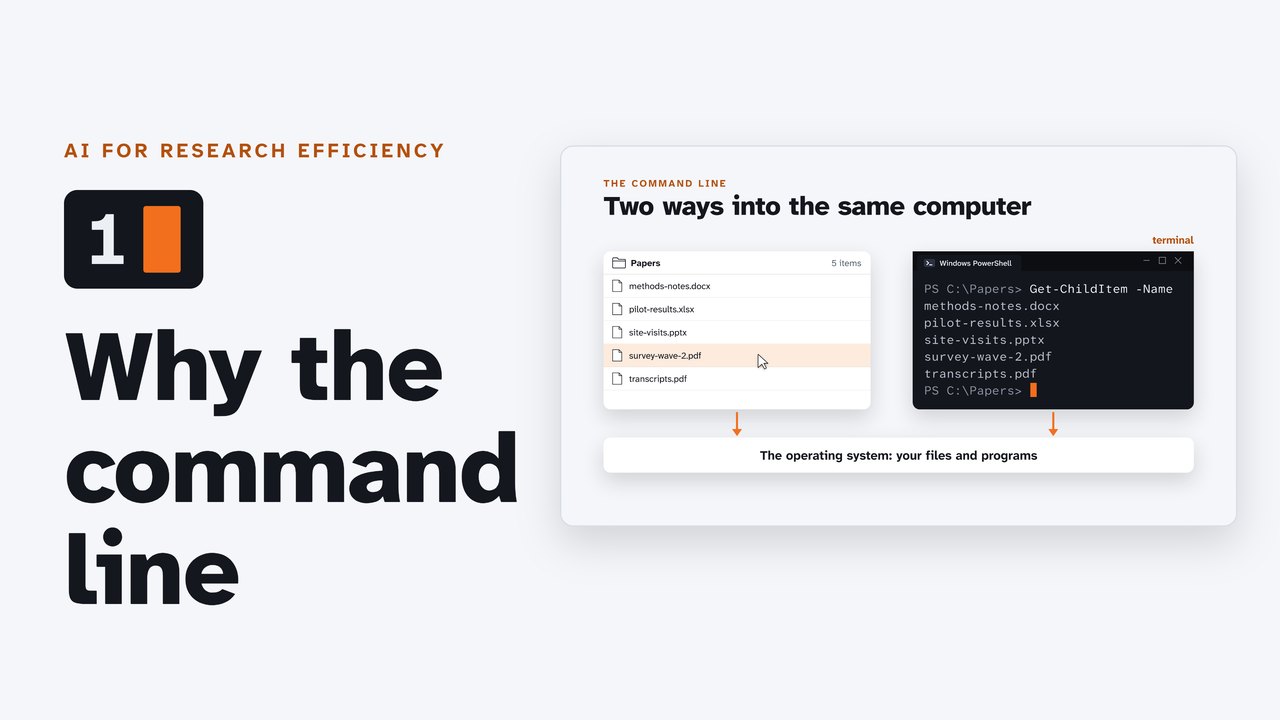
Your desktop and the command line are two ways into the same computer.
When you click, the desktop asks the operating system to open, copy or rename something.
When you type a command, you ask it directly.
The window you type in is called a terminal. The line where you type is the prompt.
The pictures are there for people. Underneath, it's the same files and the same programs.
The same task, twice
Say you have five data files from a field study, and you need the number of rows in each one.
With the mouse, you open each one and scroll to the bottom.
With one command, the computer counts them all and lists the answers.
Five files or 5,000, the command is the same.
The desktop can do some of this too. The difference is scale, and an answer in text that the next step can use.
You are the hands
Now add an AI.
In a browser tab, the assistant works on copies you upload. You carry the files in, and you carry the answers back out.
You are its hands.
To be fair, the browser apps can now run code, search the web and read your cloud drive. What a browser tab can't do is reach the files on your computer.
An agent with hands of its own
On the command line, an AI agent has hands of its own.
You ask in plain words. It opens your folder, picks a command, runs it, and reports back.
Here it even checked the count a second way, and spotted a stray period in one file's participant codes.
Why text suits an agent
Why does the command line suit an agent so well?
An agent that drives a screen works from pictures. It takes a screenshot, decides where to click, then takes another.
Its makers say that can be slow, and a click can land in the wrong place.
On the command line, the agent reads and writes text, which is what these models do best.
Its answers are exact, and it can search a whole folder and bring back only what matters.
What stays with you
What stays with you: the question, the judgment and the permissions.
At first, have the agent ask before each step, and read what it wants to do.
When you trust it with a task, switch on its automatic mode, and the work goes much faster.
Either way, you check the results against your sources.
Review and next
So: the desktop and the command line reach the same computer. In a browser tab, you are the AI's hands. On the command line, it has its own.
Next, we'll open a terminal and get ready to install your first agent.