
Episode 6: Publish a page with Vercel
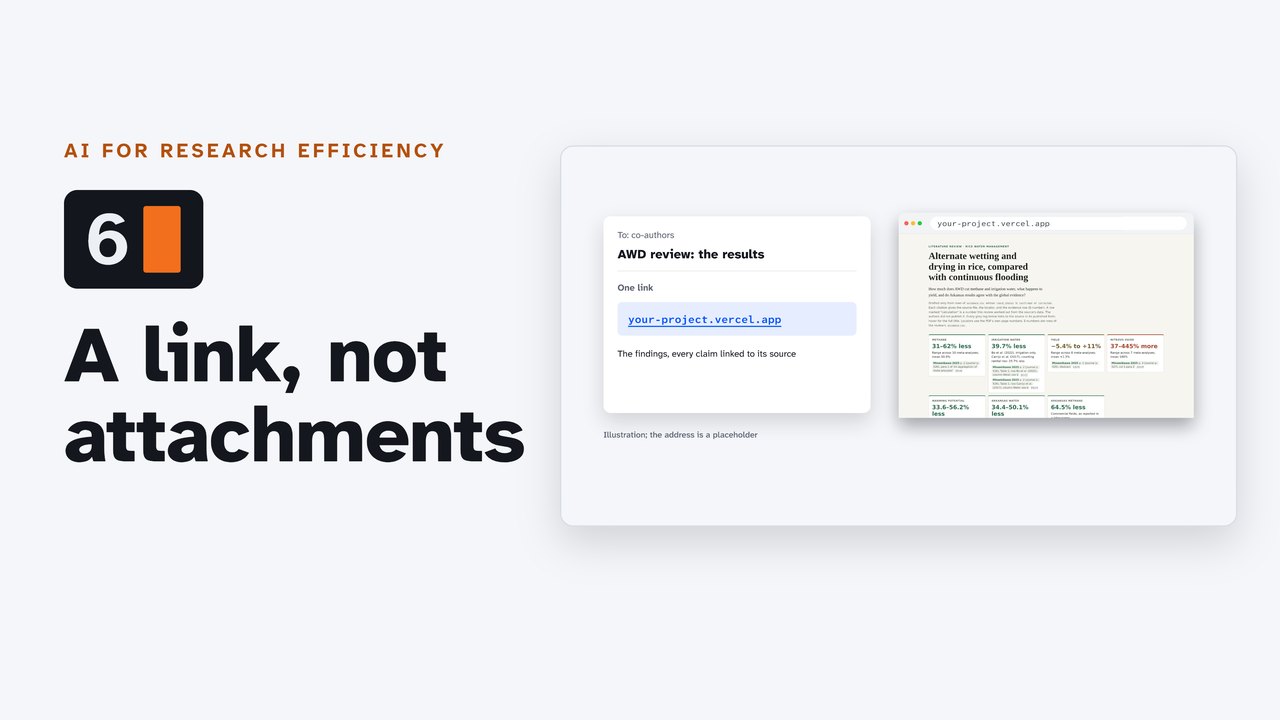
Turn research results into a web page you can share as a link: a command-line agent writes the page from a literature review's findings, with every claim linked to its source; you check it locally, push it to GitHub, import it in Vercel, and update it with every push.
Downloads
AI for Research Efficiency, episode 6, with Douglas Hutchings. Narration: an AI-generated voice (ElevenLabs).
Share a result as a link instead of an attachment: have your agent turn findings into a web page, look at it on your own computer, push it to the GitHub repository from episode 5, import it in Vercel, and update it with every push. Then check who can see it, and on what terms. Terms, prices and settings as of 4 October 2026, from Vercel's own pages (sources below). Vercel changes often: check its current terms before you publish anything for work.
1. Ask the agent for the page
In the recorded run (Claude Code 2.1.289, 4 October 2026, in a copy of the practice folder from episode 3), the request was:
Make a one-page website from the review's findings in example-run/The agent wrote a small script that builds the page from the summary (work/scripts/build_site.py), built index.html, and checked its own work: 344 source links, all 37 web addresses taken from the review's list of sources, and the page looked at in a headless browser at desktop and phone widths. It took 4 minutes 11 seconds.
The practice folder's sources/MANIFEST.csv lists its own 10 files; example-run/MANIFEST.csv is the full review's list (57 sources: titles, links and licenses), so that every file the summary cites has its link. With your own review, point the agent at your own list of sources.
2. Look before you publish
Open the page on your own computer first.
| Windows (PowerShell) | Mac (Terminal) | |
|---|---|---|
| Open the page in your browser | start index.html | open index.html |
Click a few links: each figure should land on its paper. Read it as someone who will only see the page.
3. Commit, and push
Ask your agent: "Commit it." In the recording, the agent put the commit on a branch of its own (site-from-summary) and offered to merge it. Vercel publishes the main branch as the page, so merge it ("Merge it into main.") and push (git push, as in episode 5).
4. Import it in Vercel
Nothing to install. In Vercel's dashboard:
- Choose New Project (or go to
vercel.com/new) and connect your GitHub account. - Find the repository and choose Import.
- With no framework found, Vercel selects Other: it serves the folder as it is, from the top of the repository. There is nothing to build.
- Choose Deploy. When the deployment says Ready, the page has its address (
<project-name>.vercel.app, or one with a suffix when that name is taken).
If the repository is not in the list: Vercel's GitHub app can only see the repositories you chose when you installed it, and new repositories are not added automatically. Choose Configure GitHub App on the import screen (or on GitHub: Settings, Applications), add the repository, and come back to the import screen. You must also own the repository (a collaborator on someone else's personal repository cannot import it).
Other ways to publish with Vercel:
- The Vercel CLI: it needs Node.js 20 or later.
npm i -g vercel, thenvercel login, thenvercelin the folder (a preview) andvercel --prod(production). - Vercel Drop: drag a folder, a file or a
.zipontovercel.com/drop. Each drop makes a new project, published straight to production; a push does not update it unless you connect a Git repository.
5. Change it, and push
Every push to main makes a new production deployment: the page updates by itself. A push to any other branch gets its own preview address, for checking first; merge the branch, and production updates. Vercel's address patterns:
| What | Address |
|---|---|
| A branch | <project-name>-git-<branch-name>-<scope-slug>.vercel.app |
| A commit | <project-name>-<unique-hash>-<scope-slug>.vercel.app |
6. Two settings to check
Who can see it (Project Settings, Deployment Protection):
| Setting | What it does | On the free Hobby plan |
|---|---|---|
| Vercel Authentication | visitors sign in with a Vercel account that has access | yes |
| Standard Protection | protects all deployments except production domains | yes |
| All Deployments | protects every address, the production domain included (free on every plan since 9 September 2026) | yes |
| Password Protection | a password for the page | not available (Pro: $20 a month per protected project) |
Your content (Team Settings, Data Preferences): on Hobby and trial Pro, Vercel may use your content to train AI models, and the setting starts opted in. To opt out: Team Settings (not Account Settings), Data Preferences, then from Opt-In to Opt-Out.
7. The terms, said plainly
| In Vercel's words | |
|---|---|
| Who Hobby is for | "You shall only use the Services under a Hobby plan for your personal or non-commercial use." (Terms of Service, last updated June 1, 2026) |
| What counts as commercial | "any Deployment that is used for the purpose of financial gain of anyone involved in any part of the production of the project, including a paid employee or consultant writing the code" (Fair Use Guidelines) |
| AI training | "if you are on a Hobby plan or trial Pro plan, you agree that we may use Your Content to train our artificial intelligence ("AI") and machine learning models" (Terms, section 3) |
| Health information | "You shall not use the Services to host any Protected Health Information or information that is subject to the Health Insurance Portability and Accountability Act (HIPAA), unless you first obtain Vercel's prior written approval." |
| Pro | "$20/month Pro platform fee", with $20 a month of usage credit |
So a lab's or a department's site may need Pro, or another host. Vercel does not say whether a university employee's research site counts as commercial: if you are unsure, ask Vercel's support, or choose a host without the clause.
Paid: Vercel Pro is a paid plan, and the one this series' presenter uses: "I use Vercel Pro for many of my projects to make it easy and quick to share something with others and/or deploy sites quickly" (Douglas Hutchings, 3 October 2026).
Free hosts without the personal-use clause (each has its own terms; read them for your use):
| Host | One line |
|---|---|
| GitHub Pages | a site from your repository, on the same account as your code; on the free plan it publishes from public repositories, and the site is public; not for running an online business |
| Netlify | Free plan: "$0 forever", a "300 credit limit / month"; when a site reaches it, every project on the account pauses until the next month |
| Cloudflare Pages | drag a folder into the dashboard (Direct Upload) with nothing installed; requests to static files are free |
Wherever you publish, put up only what you would show anyone: no unpublished results (the University of Arkansas, for example, classes research data before publication as Highly Sensitive), nothing that is not yours to share, and no health information.
Not confirmed yet (left out of the film until they are tested): whether a new Hobby project's production address starts public or protected (Vercel's pages disagree); whether a lone index.html imported from GitHub deploys with no settings changed (Vercel's documents imply it does); whether a university employee's research site counts as commercial under Hobby.
Try it
- Ask your agent for one page from your practice folder's findings, with every claim linked to its source.
- Open it:
start index.htmlon Windows,open index.htmlon a Mac. - Click a few links. You should see your findings, with a link on every claim.
Sources
Read on 4 October 2026 (copies kept with the project). The agent's lines in the film come from two sessions recorded that day in Claude Code 2.1.289, in a copy of the practice folder outside the studio's repository; the page is the file it wrote, captured in a browser. Vercel's dashboard is redrawn and simplified from its documentation; the addresses are placeholders in Vercel's patterns.
- Vercel: Vercel Terms of Service (last updated June 1, 2026) (opens in a new tab); Vercel Fair Use Guidelines (opens in a new tab); Vercel Hobby Plan (opens in a new tab); Vercel changelog: Updates to Terms of Service (March 2026) (opens in a new tab); Vercel Pro Plan (opens in a new tab); Deploying Git Repositories with Vercel (opens in a new tab); Vercel for GitHub (opens in a new tab); Getting started with Vercel (opens in a new tab); Vercel CLI Overview (opens in a new tab); Configuring a Build (Other preset) (opens in a new tab); Vercel Environments (opens in a new tab); Accessing Deployments through Generated URLs (opens in a new tab); Deployment Protection (opens in a new tab); Restrict access with Vercel Authentication (opens in a new tab); Vercel changelog: Protect production deployments for free on every plan (opens in a new tab); Vercel Brands (usage, attribution) (opens in a new tab); Vercel Trademark Policy (opens in a new tab); Adding & Configuring a Custom Domain (opens in a new tab); How to fix 'unable to find your GitHub repository' on Vercel (opens in a new tab); Vercel Drop vs Cloudflare Direct Upload (opens in a new tab); Vercel Deployments (opens in a new tab); Managing Deployments (opens in a new tab); Deploying Projects from Vercel CLI (opens in a new tab); Vercel REST API: get a deployment (readyState BUILDING, READY) (opens in a new tab).
- GitHub: Installing a GitHub App from a third party (All or Only select repositories) (opens in a new tab); Creating a GitHub Pages site (opens in a new tab); GitHub Pages limits (opens in a new tab).
- Netlify and Cloudflare: Netlify Pricing (opens in a new tab); Netlify Self-Serve Subscription Agreement (last updated October 1, 2025) (opens in a new tab); Cloudflare Pages Direct Upload (opens in a new tab); Cloudflare Pages limits (opens in a new tab); Cloudflare Self-Serve Subscription Agreement (last updated September 12, 2025) (opens in a new tab).
- The commands: npm registry: vercel 62.2.0 (engines: node >= 20) (opens in a new tab); Start-Process (PowerShell): the alias start on Windows (opens in a new tab); open (macOS command) (opens in a new tab).
- The campus: University of Arkansas FPP 921.0 Data Classification (opens in a new tab).
Vercel, the Vercel design, Next.js and related marks, designs and logos are trademarks or registered trademarks of Vercel, Inc. or its affiliates in the US and other countries.
Corrections
None so far. If you find something wrong, email doug,@douglashutchings.com.
Transcript
Every spoken line, by chapter
A link, not attachments
Sharing results the usual way: an email with six attachments, and a hope that everyone opens the right one.
Or one link: a page with the findings, where every claim links to its source.
AI for Research Efficiency. Episode 6: Publish a page with Vercel.
Last time, your folder got a history with Git, and a private copy on GitHub.
This time: turn your results into a page, publish it to a link, and know who can see it, and on what terms.
1. The agent makes the page
One: ask the agent for the page.
In the practice folder, ask for one page from the review's findings, with every claim linked to its source.
It wrote a small script that builds the page, then checked the links: 344, all from the review's own list of sources.
2. Look before you publish
Two: look at it on your own computer first.
Type start, then the file's name, and it opens in your browser. On a Mac, type open.
Click a few links: each figure should land on its paper.
3. Commit and push
Three: commit it, and push.
The agent put its commit on a branch of its own, and offered to merge it into main.
That matters here, because main becomes the published page. So merge it, and push, as in episode 5.
4. Import it in Vercel
Four: publish it, with nothing to install.
In Vercel, choose New Project, connect your GitHub account, and import the repository.
It finds no framework, so it serves the folder as it is. Press Deploy.
When it says Ready, your page has its address.
If the repository isn't in the list, Vercel's GitHub app can only see the repositories you chose. Choose Configure GitHub App, and add it.
5. Change it, and push
Five: change it, and push.
Every push to main updates the page by itself. A push to any other branch gets a preview address of its own.
So the agent added a date on a new branch: check the preview, then merge it, and the page updates.
6. Two settings to check
Six: two settings to check on the free plan.
Who can see it: Standard Protection asks visitors to previews to sign in with Vercel, and leaves the main address open. The free plan has no passwords.
And your content: on the free Hobby plan, Vercel may use it to train AI models, unless you switch that off, under Team Settings, Data Preferences.
7. The terms, said plainly
Seven: the terms, said plainly.
Hobby is for personal or non-commercial use, and Vercel counts a paid employee writing the code as commercial.
So a lab's or a department's site may need Pro, at $20 a month, or another host.
Pro is a paid plan, and the one this series' presenter uses for many projects.
Free hosts without that clause include GitHub Pages, Netlify and Cloudflare Pages.
Wherever you publish, put up only what you'd show anyone: no unpublished results, nothing that isn't yours, and no health information.
Try it
Pause here, and try it: ask your agent for a page from your practice folder's findings, and open it in your browser.
Review and next
So: a link, not attachments. Look before you publish, and check who can see it, and on what terms.
Next: tokens and limits.