
Episode 4: Small habits that save hours
Nine small habits for working with a command-line AI agent every day, Windows first with the Mac beside it: open a terminal from a folder, hand the agent exact file paths, copy, paste and stop, teach it once with an instruction file, stop, go back and resume, keep it moving from your phone, and show it a screenshot.
Downloads
AI for Research Efficiency, episode 4, with Douglas Hutchings. Narration: an AI-generated voice (ElevenLabs).
Nine small habits for working with a command-line agent every day, Windows first with the Mac beside it. Keys and labels as of 4 October 2026, from Microsoft's, Apple's, Anthropic's, OpenAI's and Google's documentation (sources below), and from sessions recorded that day in Claude Code 2.1.289 and Codex 0.160.0. The tools change often: if a key does nothing, check the tool's own help (/help).
1. From the folder to the terminal, and back
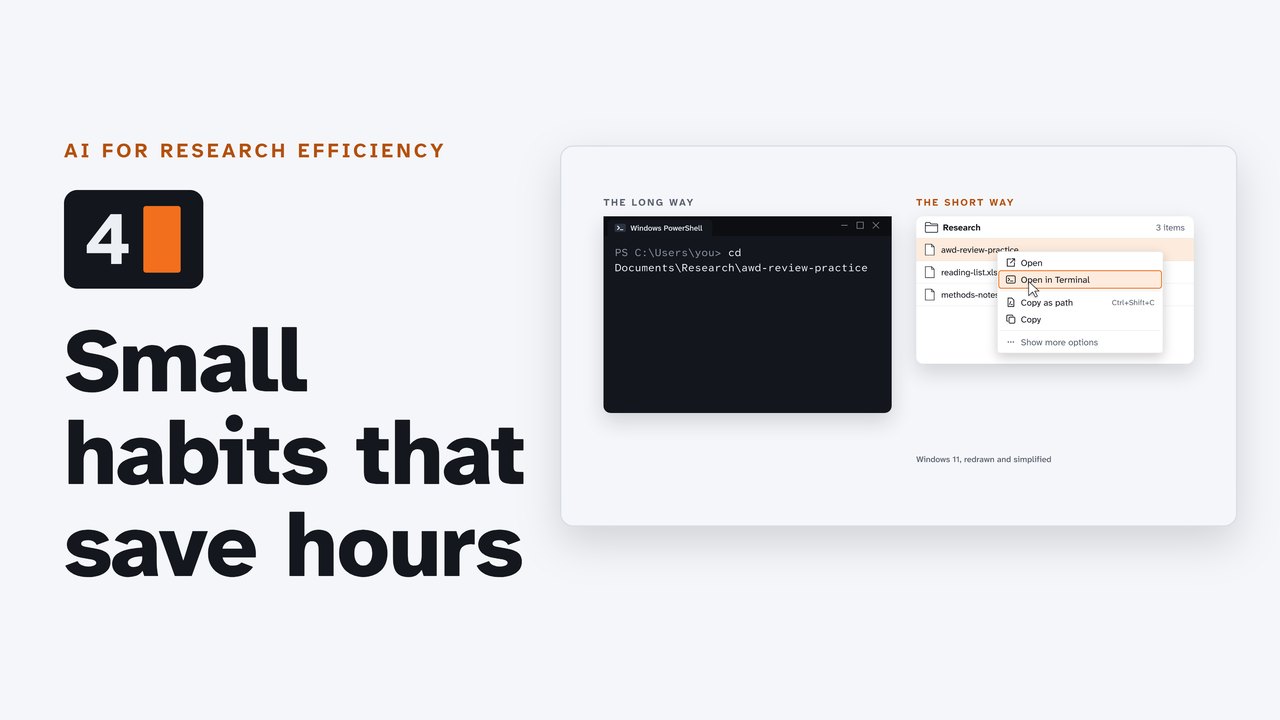
Windows 11: in File Explorer, right-click the folder, or empty space inside it, and choose Open in Terminal. Or click the address bar (or press Ctrl+L), type wt and press Enter: Windows Terminal opens in the folder you are looking at. Both come with the Windows Terminal app: if your PC does not have it, install Windows Terminal from the Microsoft Store.
Mac: in Finder, show the path bar (View, Show Path Bar), Control-click the folder in it, and choose Open in Terminal.
Back again, from the terminal to the folder:
explorer .On a Mac:
open .2. Hand the agent a file
Drag a file or folder into the terminal: its full path appears where you are typing (Windows Terminal puts quotation marks around a path with a space). It does not work into a terminal run as administrator. Or right-click the file and choose Copy as path (Ctrl+Shift+C), then paste it.
Mac: drag it into the Terminal window, or right-click it, hold Option, and choose Copy "name" as Pathname.
3. Copy, paste, and stop
| Windows Terminal | Mac Terminal | |
|---|---|---|
| Copy | Ctrl+C with text selected (Ctrl+Shift+C always copies) | Command+C |
| Paste | Ctrl+V | Command+V |
| Stop what is running | Ctrl+C with nothing selected | Control+C |
4. The Up Arrow, and Tab
The Up Arrow brings back your last command (press it again for older ones). Tab finishes a file or folder name: type the first letters, then press Tab. Both work the same way in PowerShell and in the Mac's Terminal.
5. Side by side, and larger
Windows: the Windows key and the Left Arrow (or Right Arrow) put a window on one half of the screen; Windows then offers the other windows for the other half. In Windows Terminal, Ctrl and + makes the text larger, Ctrl and - smaller, Ctrl and 0 resets it.
Mac (macOS Sequoia 15 or later): Fn, Control and the Left Arrow (or Right Arrow) tile a window to one half. In Terminal, Command and + makes the text larger, Command and - smaller.
6. Teach the agent once
An instruction file tells the agent what to know about your folder: the question, the rules, where things go. It reads the file each time it starts. The practice folder from episode 3 already has one (CLAUDE.md).
| Claude Code | Codex CLI | Antigravity CLI | |
|---|---|---|---|
| The instruction file | CLAUDE.md (reads AGENTS.md when there is no CLAUDE.md) | AGENTS.md | AGENTS.md or GEMINI.md |
| Write a first one | /init | /init | ask it to write one; /learn turns a session's corrections into rules |
| Point at one file | @ and the start of its name | @ and the start of its name | @ and the start of its name |
7. Stop, go back, carry on
| Claude Code | Codex CLI | Antigravity CLI | |
|---|---|---|---|
| Stop the agent mid-step | Esc | Esc | Esc |
| Go back to an earlier message | Esc twice on an empty prompt (or /rewind) | Esc twice on an empty prompt (edit the earlier message) | /rewind |
| A correction while it works | type it and press Enter: it waits for the agent | type it and press Enter: it goes in after the next step | type it and press Enter: queued |
| Pick up a session later | claude --continue (the last one here), claude --resume (choose) | codex resume (choose), codex resume --last | agy -c (the last one) |
8. Keep it moving from anywhere
Remote control lets you start a session at your desk and keep steering it from your phone or another computer. In all three tools the work still runs on your own computer, so it has to stay on and connected.
| How | Where you continue | Notes | |
|---|---|---|---|
| Claude Code | /remote-control in a session, or start with claude --remote-control | the Claude app (Code), or claude.ai/code | Pro, Max, Team or Enterprise plans; not with an API key; on Team and Enterprise an Owner turns it on first. While connected, the session's transcript is stored on Anthropic's servers |
| Codex | set up in the ChatGPT desktop app (Settings, Connections, Control this Mac or PC), not in the Codex CLI | the ChatGPT app on your phone (Codex) | Mobile remote control is listed for Plus, Pro, Business and Enterprise; a workspace admin may need to allow it |
| Antigravity CLI | /remote-control in a session, or start with agy --remote-control | the link it prints, in any browser signed in to the same Google account | /remote-control off disconnects; the tunnel ends when the session does |
Your campus's rules for research data still apply to anything the session reads.
9. Show it, and tell it
| Claude Code | Codex CLI | Antigravity CLI | |
|---|---|---|---|
| Paste a screenshot | Alt+V on Windows (Ctrl+V on a Mac) | paste into the prompt; or start with codex -i figure.png | Ctrl+V; Alt+V on Windows |
| Talk instead of typing | /voice, then hold Space while you speak (needs a claude.ai sign-in) | none in its command line (the ChatGPT desktop app has dictation) | /voice or F5 (not for business or enterprise accounts) |
Three more keys
| Claude Code | Codex CLI | Antigravity CLI | |
|---|---|---|---|
| Run a terminal command from the prompt | ! and the command | ! and the command | ! and the command |
| A side question, kept out of the main conversation | /btw and the question | /btw (or /side) | /btw and the question |
| Search your earlier prompts | Ctrl+R | Ctrl+R | not documented (its Ctrl+R opens the Artifact Review panel) |
Not confirmed yet (left out of the film until they are tested on a Windows PC and a Mac): whether Windows voice typing (Win+H) or the Mac's Dictation works inside a terminal; Codex's key for pasting an image on Windows; where Open in Terminal sits in Windows 11's shorter right-click menu (on some PCs it may be under Show more options).
Try it
- Open a terminal from your practice folder (right-click, Open in Terminal).
- Start your agent.
- Type
@and the start of a file name: the file's path appears in your prompt.
Sources
Read on 3 and 4 October 2026 (copies kept with the project). The agents' screens in the film come from sessions recorded that day in Claude Code 2.1.289 and Codex 0.160.0, in copies of the practice and sample folders; Claude Code's Remote Control screen from the text in its program; Antigravity's from its documentation and agy --help.
- Microsoft: Custom actions and keybindings in Windows Terminal (Windows Terminal Actions) (opens in a new tab); Windows Terminal tips and tricks (opens in a new tab); Windows Terminal distribution types (opens in a new tab); General profile settings in Windows Terminal (opens in a new tab); Windows Terminal Preview 1.1 Release (opens in a new tab); Announcing Windows 11 Insider Preview Build 22543 (opens in a new tab); Keyboard shortcuts in Windows (opens in a new tab); Snap Your Windows (opens in a new tab); Windows productivity tip: File Explorer - Command Prompt and back from the current directory (opens in a new tab); about_PSReadLine_Functions (opens in a new tab); ping (opens in a new tab); microsoft/terminal TermControl.cpp at v1.25.2733.0 (drag and drop handler) (opens in a new tab); Drag & Drop Folder to Elevated Terminal Not Working (microsoft/terminal issue #18048) (opens in a new tab).
- Apple: Open new Terminal windows and tabs on Mac (opens in a new tab); Keyboard shortcuts in Terminal on Mac (opens in a new tab); Drag items into a Terminal window on Mac (opens in a new tab); Specify files and folders in Terminal on Mac (opens in a new tab); Execute commands and run tools in Terminal on Mac (opens in a new tab); Tile windows on Mac (opens in a new tab); Mac window tiling icons & keyboard shortcuts (opens in a new tab); open (macOS command) (opens in a new tab).
- Anthropic (Claude Code): Claude Code docs: Interactive mode (opens in a new tab); Claude Code docs: Memory (CLAUDE.md) (opens in a new tab); Claude Code docs: Manage sessions (opens in a new tab); Claude Code docs: Checkpointing (opens in a new tab); Claude Code docs: Voice dictation (opens in a new tab); Claude Code docs: Continue local sessions from any device with Remote Control (opens in a new tab).
- OpenAI (Codex): Codex docs: Developer commands (CLI) (opens in a new tab); Codex docs: AGENTS.md (opens in a new tab); Codex docs: Image inputs (opens in a new tab); Codex docs: Remote connections (opens in a new tab); Codex pricing (plan features) (opens in a new tab).
- Google (Antigravity): Antigravity docs: Using the CLI (opens in a new tab); Antigravity docs: CLI reference (opens in a new tab); Antigravity docs: Rules (opens in a new tab); Antigravity docs: Slash commands (opens in a new tab); Antigravity docs: /voice (opens in a new tab); Antigravity docs: Remote Control (opens in a new tab).
Corrections
None so far. If you find something wrong, email doug,@douglashutchings.com.
Transcript
Every spoken line, by chapter
Small habits
Opening a terminal in your project folder, the long way: typing the whole path, letter by letter.
The short way: right-click the folder, and choose Open in Terminal.
AI for Research Efficiency. Episode 4: Small habits that save hours.
Last time, a team of agents reviewed 57 files, and you checked what they found.
In this episode: nine small habits for working with an agent every day. Windows first, with the Mac beside it.
1. Folder to terminal, and back
One: from the folder to the terminal, and back.
In File Explorer, right-click the folder, or empty space inside it, and choose Open in Terminal.
Or click the address bar, type wt, and press Enter. It opens in the folder you're looking at.
On a Mac, Control-click the folder in Finder's path bar, and choose Open in Terminal.
And back again: type explorer . and the folder opens. On a Mac, it's open .
2. Hand it a file
Two: hand the agent a file.
Drag it into the terminal, and its full path appears where you're typing.
Or right-click it, and choose Copy as path. On a Mac, hold Option, and choose Copy as Pathname.
3. Copy, paste, stop
Three: copy, paste, and stop.
Ctrl+C copies, but only when text is selected. With nothing selected, it stops what's running.
Ctrl+V pastes. On a Mac, Command+C and Command+V copy and paste, and Control+C stops.
4. Up Arrow and Tab
Four: the Up Arrow brings back your last command, so trying again takes one key.
And Tab finishes a name: type the first letters, and press Tab.
5. Side by side, and larger
Five: side by side, and larger.
The Windows key and Left Arrow put the terminal on one half of the screen. Then pick a window for the other half.
Ctrl and + make the text larger; Ctrl and -, smaller. On a Mac, use Command.
6. Teach it once
Six: teach the agent once.
An instruction file tells it about your folder: the question, the rules, where things go. The agent reads it every time it starts.
Type /init, and the agent writes a first one: CLAUDE.md in Claude Code, AGENTS.md in Codex. Antigravity reads AGENTS.md too; ask it to write one.
And to point at one file, type @ and the start of its name.
7. Stop, go back, carry on
Seven: stop, go back, carry on.
Esc stops the agent mid-step. In Claude Code and Codex, press it twice to go back to an earlier message, and try again from there. In Antigravity, type /rewind.
While it works, type a correction and press Enter. It reaches the agent without stopping the work.
And tomorrow, pick up where you left off: claude --continue, codex resume, or agy -c.
Eight: keep it moving from anywhere.
8. Keep it moving from anywhere
In Claude Code or Antigravity, type /remote-control. Then open the same session on your phone, or in a browser, and keep steering it.
Codex sets this up in the ChatGPT desktop app, and you carry on from the ChatGPT app on your phone.
The work still runs on your own computer, so leave it on.
9. Show it, tell it
Nine: show it, and tell it.
Paste a screenshot into the prompt. On Windows, that's Alt+V in Claude Code and Antigravity. Codex takes an image with -i, when it starts.
Or talk instead of typing: /voice, in Claude Code or Antigravity. Codex documents no voice input for its command line.
Every key, for all three tools, is on the companion page.
Try it
Pause here, and try three: open a terminal from your practice folder, start your agent, and point it at one file with @.
Review and next
So: start in the folder, hand it exact paths, teach it once, and keep it moving.
Next: save and share your work with GitHub.