
In Practice: Make a slide deck that looks like yours
One real run in Codex: an AI agent asked for the best way first, a style brief written down as a skill, then an editable PowerPoint deck in the presenter's own fonts, colors and voice, with a chart that builds in steps (Morph) and the same data as a native chart, checked against the brief by a script.
Downloads
AI for Research Efficiency, In Practice, with Douglas Hutchings. Narration: an AI-generated voice (ElevenLabs).
One real run, replayed: an agent asked for the best way to make a deck from a paper that looks and sounds like its presenter, before building anything. Three helpers looked into the options, a reviewer tested them against the real files, the presenter decided, and the agent wrote the process down as a skill with a style brief in it. Then it built an editable PowerPoint deck in the presenter's fonts, colors and voice, with a chart that builds in steps, and a script checked the deck against the brief. Recorded on 28 October 2026 with Codex 0.164.0 on the studio's Linux server; the same steps in Claude Code and Antigravity are below, from their own documentation (only Codex was recorded). The presenter's answers to the agent's questions were written before the run, from the studio's defaults.
1. The practice folder
Download it here: deck-practice.zip. It holds one open paper and its data, and the style of the person presenting it:
deck-practice/ AGENTS.md the instruction file (Codex and Antigravity read AGENTS.md; for Claude Code,Two things in the data trip up a first read, as they did in the run: its lines end the way old Macs ended them (a carriage return, no line feed), and its text is not UTF-8.
2. Set up (Windows first, the Mac beside it)
You need Python (episode 2.0 installs it) and python-pptx (MIT; it makes PowerPoint files without PowerPoint).
Windows (PowerShell),macOS (Terminal),To look at the slides as pictures, the agent needs something that can draw them:
- PowerPoint itself, if you have it: it draws your fonts as your audience will see them. File > Export saves every slide as a picture; an agent can do the same from a script (
Presentation.SaveAs, with 18 for PNG). - LibreOffice, free: on Windows
winget install TheDocumentFoundation.LibreOffice(its package installs for the whole machine, so Windows may ask for an administrator); on the Mac, the installer from libreoffice.org (not yet tried by the studio). It swaps any font it does not have, so install your fonts first (their static files, not only the variable one), and judge type in PowerPoint.
3. Ask for the process first
The request, typed in plan mode, word for word:
What is the best way to make a deck from this paper that looks and sounds like me?| Codex | Claude Code | Antigravity | |
|---|---|---|---|
| Plan mode | /plan, or Shift+Tab | Shift+Tab until "plan mode on", or /plan | Shift+Tab until plan, or /plan |
| Being interviewed | ask for it ("Interview me first") | ask for it | /grill-me asks one question at a time |
| Helpers and a reviewer | ask for subagents | ask for subagents | ask for subagents |
| Skills | .agents/skills/ | .claude/skills/ | .agents/skills/ |
Then the run's next requests, as typed:
Use three subagents,Now start one reviewer subagent. Give it the options and this folder. It should test each option against the real files,Then the presenter's decisions and the skill, in one message, out of plan mode (Shift+Tab again):
My decisions: the series' font,The build, checked at the first step:
Now make the deck with the skill: the paper's main findings in about eight slides,In the run, the agent asked to install python-pptx in a virtual environment inside the folder (approved), showed the first slide, and got "Looks right. Go ahead with the rest." Then /permissions > "Approve for me", which Codex describes on the screen as "Only ask for actions detected as potentially unsafe" (its documentation calls the preset Auto). Fresh eyes on every slide, then the check:
Render every slide to a picture and have a subagent that hasn't seen your code compare them with the brief and list every problem it sees. Fix what it finds and render again.Check the deck against the brief,The run took about 56 minutes from the first request to the checked deck.
Before the run, the studio listed nine traps it knew were in this folder (a disagreement between the presenter's website and the series on fonts, a brand color under 3:1, the data's line endings and encoding, the paper's own counting rules, charts that don't morph, python-pptx's blank deck, a preview that swaps fonts, the paper's credit), and kept the list out of the run's folder. The reviewer found three of them, and part of a fourth (the paper's years, not its rule about a test publisher's rows). The other five came up at other steps: the fonts in the agent's first look, the orange while it wrote the brief, the charts in a helper's report, python-pptx's blank deck in the build, the credit in the plan. The reviewer also found a problem the list had missed: the paper's own Figure 2B stacks the closed articles too, up to 100%. The test publisher's rows got past every step, and past the check (below).
4. The skill: deck-in-my-style
Download the folder: deck-in-my-style.zip. Put one copy in .agents/skills/deck-in-my-style/ (Codex and Antigravity) and another in .claude/skills/deck-in-my-style/ (Claude Code); on Windows, a copy, not a link.
deck-in-my-style/ SKILL.md the process: brief first,The brief puts your sources in the order that wins, so a disagreement has an answer. In the run, the presenter's website sets Lato and Open Sans and the series sets Atkinson Hyperlegible Next; a 2025 list of fonts to avoid names both of the website's. The brief wins over the list either way: Anthropic's own design skill says "the brief's own words always win, including when it asks for one of these looks".
5. A chart that builds in steps
PowerPoint's Morph transition moves the same objects from one slide to the next; "charts don't morph, they cross-fade" (Microsoft). So the chart that builds is drawn as shapes:
- each bar a rectangle with a name that starts with two exclamation marks (
!!bar-2015), the same on every step; - one step per slide, each slide with its own title, and Morph on every step after the first;
- then the same numbers as a real PowerPoint chart on the next slide, which you can still edit.
python-pptx has no setting for transitions; pptx_helpers.py writes Morph the way PowerPoint does, with a fade for older versions. Morph plays in Microsoft 365, PowerPoint 2019 and 2021, and PowerPoint for the web (for files on OneDrive for work or school or SharePoint); PowerPoint 2016 without its updates "plays a Fade transition".
6. Check it against your brief
Windows: .venv\| What it checks | The number, and where it comes from |
|---|---|
| Contrast | text 4.5:1; large text (18 pt, or 14 pt bold) and the parts of a chart 3:1 (WCAG 2.2, 1.4.3 and 1.4.11) |
| Size | nothing under 18 pt (Microsoft: "Use a larger font size (18pt or larger)"), after shrink-to-fit |
| Titles | one on every slide, no two alike (Microsoft: "Give every slide a unique title") |
| Alternative text | on every picture and chart; python-pptx has no setting for it (Microsoft: "you need to add the alt texts manually") |
| Leftovers | empty slides, empty placeholders, "Click to add" text |
| Fonts | every face the text uses, against the brief and its banned list |
| Voice | sentence length, the first person, the variety of openers and a dated word list, against your own writing |
On the run's deck, the script found 37 failures: 24 text runs under 18 pt (23 of them source and credit lines), 8 titles a screen reader can't find (each title is a text box, not the slide's title placeholder), 4 pale chart fills under 3:1 against the background, and 1 chart without alternative text. What it can't see: the data (the chart keeps 141 rows from a test publisher that the paper's code leaves out, so 2000 reads 23.56% where the paper's method gives 24.24%), and the ink lines the deck draws between the pale fills. The same script on the before and after (two fresh sessions, the same one-line request, the second with run A's skill): 203 failures on the deck made without a brief, 41 on the one made with it.
Then two looks only you can give: PowerPoint's Accessibility Checker (Review > Check Accessibility), and a last pass in PowerPoint itself. The studio has no PowerPoint on its server: every slide picture in the film is a LibreOffice render, and the film does not claim that Morph played or what the Accessibility Checker says. The presenter's own check on Windows (Morph, PowerPoint's export, its Accessibility Checker, bold titles) is still to come. If your deck will be posted by a public university, the Justice Department's ADA Title II rule applies to what is posted after the compliance date (April 26, 2027 for entities of 50,000 people or more): its own example, a posted PowerPoint, "would probably have to meet WCAG 2.1, Level AA". Whether that reaches a lab's deck is for your campus to say. (Read 24 October 2026; the dates are being argued in court.)
7. Fonts and embedding
- An open font (SIL OFL) may travel inside the deck: "So can I embed OFL fonts in my document? Yes, either in full or a subset." In PowerPoint for Windows: File > Options > Save > Embed fonts in the file, and choose "Embed all characters (best for editing by other people)". PowerPoint for Microsoft 365 for Mac, 2024 and 2021 for Mac can embed too.
- A font marked Restricted cannot be embedded; one marked Preview/Print opens the deck read-only elsewhere.
- Google Slides "ignores fonts embedded in an uploaded PowerPoint file".
8. Same process, another field
The same skill with a fictional author's brief (an extension agronomist, made up for this film: Lato, field colors, short sentences in the second person) on EPA's table of methane from rice cultivation by state, 1990 to 2020. The EPA table is a US Government work; EPA's terms allow non-commercial, scientific and educational use.
In the run (a fresh Codex session, the same day), the agent noticed whose brief the skill held: "The skill contains a previous presenter's brief, so I'll use this folder's Lato, field colors, and plain grower-facing language." It wrote the PowerPoint file with Python's standard library alone (no python-pptx), six slides with two editable charts, and the same check found 21 failures (12 text runs under 18 pt, 6 titles outside the title placeholder, two charts and a table without alternative text).
9. The line not to cross
- Only fonts, pictures and logos you may use. A university's logo is usually for its authorized units: the University of Arkansas, for one, says "Students and student groups are not allowed to use these elements without special permission from university relations."
- Never let a number on a slide drift from its source, and keep the qualifiers.
- If your venue or your institution asks you to say where AI helped, say so.
The vendors' own slide tools
Anthropic's pptx skill (source-available, not open source; it builds decks with the Node library pptxgenjs; in Claude Code, /plugin install document-skills@anthropic-agent-skills). OpenAI's Presentations, in the ChatGPT desktop app (@Presentations). Gemini in Google Slides makes native Google Slides decks and takes a reference deck. Copilot in PowerPoint uses a Brand Kit and your template.
Sources
Read on 24 October 2026 unless dated otherwise; the tools' and vendors' pages read again on 28 October 2026.
- Piwowar H, Priem J, Larivière V, Alperin JP, Matthias L, Norlander B, Farley A, West J, Haustein S (2018). The state of OA: a large-scale analysis of the prevalence and impact of Open Access articles. PeerJ 6:e4375. https://doi.org/10.7717/peerj.4375 (opens in a new tab) (CC BY 4.0). Data: https://doi.org/10.5281/zenodo.837902 (opens in a new tab) (CC0); code: https://github.com/ourresearch/oadoi-paper1 (opens in a new tab) (MIT). Read 27 October 2026.
- Anthropic, "Improving frontend design through Skills" (2025): https://claude.com/resources/articles/improving-frontend-design-through-skills (opens in a new tab); the frontend-design and pptx skills: https://github.com/anthropics/skills (opens in a new tab).
- Microsoft: Morph (https://support.microsoft.com/en-us/powerpoint/training/use-the-morph-transition-in-powerpoint (opens in a new tab), tips and tricks https://support.microsoft.com/en-us/powerpoint/morph-transition-tips-and-tricks (opens in a new tab)); accessible PowerPoint presentations (https://support.microsoft.com/en-us/accessibility/powerpoint/make-your-powerpoint-presentations-accessible-to-people-with-disabilities (opens in a new tab)); embedding fonts (https://support.microsoft.com/en-us/office/benefits-of-embedding-custom-fonts-cb3982aa-ea76-4323-b008-86670f222dbc (opens in a new tab)).
- W3C, WCAG 2.2: https://www.w3.org/TR/WCAG22/ (opens in a new tab). ADA.gov, the Title II web rule: https://www.ada.gov/resources/2024-03-08-web-rule/ (opens in a new tab).
- python-pptx: https://python-pptx.readthedocs.io/ (opens in a new tab). Marp CLI: https://github.com/marp-team/marp-cli (opens in a new tab). Slidev: https://sli.dev/guide/exporting (opens in a new tab). Pandoc: https://pandoc.org/MANUAL.html (opens in a new tab). Quarto: https://quarto.org/docs/presentations/powerpoint.html (opens in a new tab).
- Google (Gemini in Google Slides, 30 June 2026), OpenAI (Create or revise a slide deck), Microsoft (Copilot in PowerPoint): the addresses are in the film's
research/sources.json. - Wikipedia, "Signs of AI writing": https://en.wikipedia.org/wiki/Wikipedia:Signs_of_AI_writing (opens in a new tab). Michael Alley: https://www.craftscicom.org/ai_signs.html (opens in a new tab), https://www.assertion-evidence.com/ (opens in a new tab).
- SIL, OFL FAQ: https://openfontlicense.org/ofl-faq/ (opens in a new tab). Atkinson Hyperlegible Next: https://github.com/googlefonts/atkinson-hyperlegible-next (opens in a new tab).
- U.S. EPA, Inventory of U.S. Greenhouse Gas Emissions and Sinks 1990-2022, Table 5-11: https://www.epa.gov/ghgemissions/inventory-us-greenhouse-gas-emissions-and-sinks-1990-2022 (opens in a new tab).
- Plan mode and skills in the three tools: Codex (https://learn.chatgpt.com/guides/best-practices (opens in a new tab)), Claude Code (https://code.claude.com/docs/en/permission-modes (opens in a new tab)), Antigravity (https://antigravity.google/docs/plan (opens in a new tab)).
Corrections
None so far. If you find something wrong, email doug,@douglashutchings.com.
Transcript
Every spoken line, by chapter
Two decks, one difference
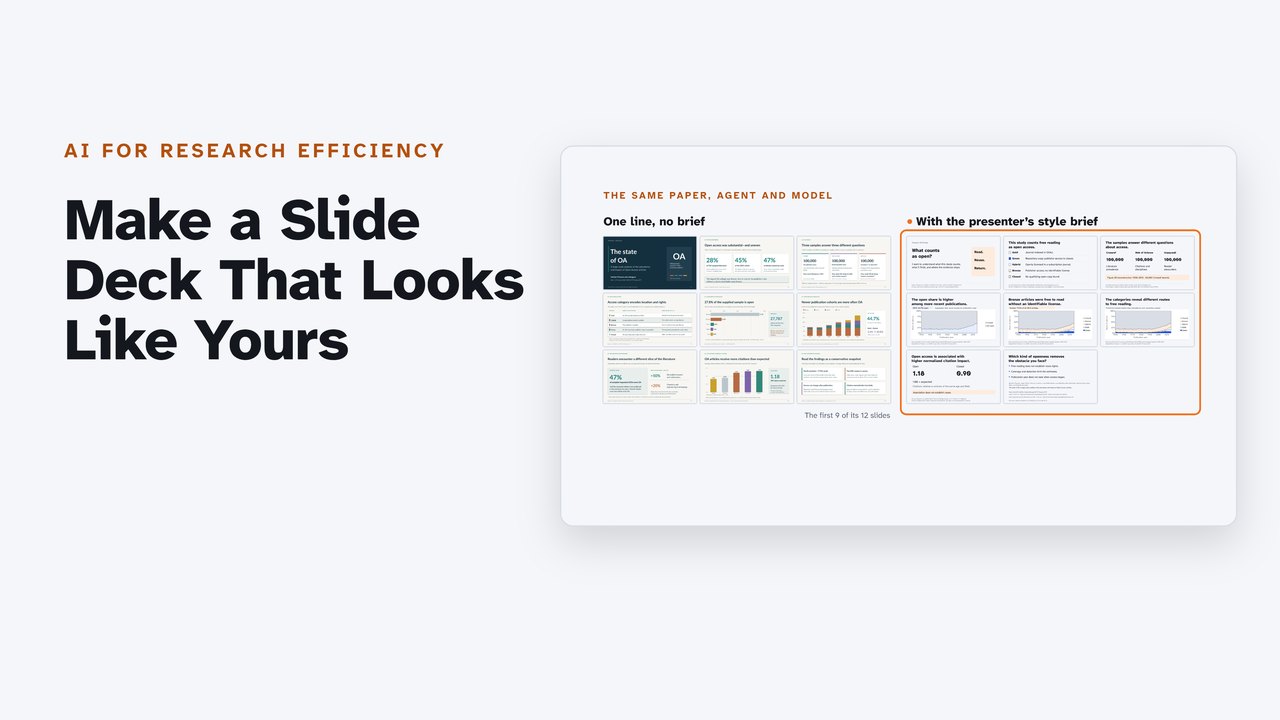
Both decks come from the same paper, agent and model; the one on the right had the presenter's style brief.
The same check, run on both: two hundred and three failures on the left, forty-one on the right.
Anthropic names the pull toward the same look, for web pages: distributional convergence, a model reaching for the most common fonts and colors.
AI for Research Efficiency, In Practice. Make a slide deck that looks like yours.
In this film, a paper and its data become an editable PowerPoint deck in your own style, with one chart that builds in steps, checked against your brief.
Recorded runs in Codex, using four lessons from the series.
1. Ask for the process
Step one: ask for the process. The folder holds the paper, its data, the presenter's website style, the look of this series, and a sample of the presenter's own writing.
The request, in plan mode: what is the best way to make a deck from this paper that looks and sounds like me? Interview me first, and don't build anything yet.
Shift Tab cycles to plan mode, or type slash plan, in Codex, Claude Code and Antigravity.
Codex asks eleven questions, in four rounds, before it writes a plan.
2. Options, in parallel
Step two: options. Three helpers look into the ways to do this, all at once.
The first finds what four vendors do about decks that look alike: each lets you give its tool your own slides, a theme or a brand kit to follow, much like a style brief.
The second compares ways to make a file you can still edit: PowerPoint by hand, a JavaScript library, or Python's P P T X library, which makes real PowerPoint charts with their numbers behind them, and doesn't need PowerPoint.
The third finds how a chart can move and stay editable. Shapes can morph from one slide to the next; PowerPoint's own charts don't, they cross-fade.
3. Attack the options
Step three: a reviewer agent tests each option against the real files, and reports only the problems that would change the result.
Before the run, we listed nine traps we knew were in this folder, and the agents never saw the list. The reviewer found three of them, and part of a fourth.
It also found a problem we hadn't listed: the paper's own figure stacks the closed articles too, up to a hundred percent.
The other five came up at other steps. In its first look, the agent noticed that the presenter's website and video series use different fonts; the website's Lato and Open Sans are both on Anthropic's twenty twenty-five list of fonts to avoid.
And writing the brief, it found the brand's bright orange reaches two point seven to one on its background, where a chart mark needs three to one.
Some university templates need the same check. In one we tested, the first chart color reaches two point six seven to one on white.
4. Decide, and write it down
Step four: decide, and write it down. The presenter chooses the series' font for everything and the bright orange as a tint only, and the agent writes the process as a skill, a file it reads every time.
The brief inside it puts the sources in order, so a disagreement has an answer, and gives each color only the jobs it can do.
For the voice, it keeps a sample of the presenter's own writing, from before any AI tool touched it.
And a dated list of looks to avoid, each with its source, because the looks change.
5. The run
Step five: the run. Check each step at first; once the steps look right, let it run.
It counts the data itself. The file ends its lines the way old Macs did, and its text isn't U T F eight. It reads it as Mac Roman, the old Mac text, and keeps the paper's years, nineteen fifty to twenty fifteen.
Its count for twenty fifteen: forty-four point seven two percent. The paper prints forty-four point seven percent.
The chart that builds is drawn as shapes, each named with two exclamation marks, so Morph can match it on the next slide, where a mask slides back to show the later years.
Then the same numbers as a PowerPoint chart you can edit, with its data inside the file.
Every slide becomes a picture, and a second agent that hasn't seen the code compares them with the brief.
Its report: six problems, from a chart that jumps between two slides to a title that reads like a date. The first agent fixes all six and renders again.
About fifty-six minutes, start to finish.
6. Check it against the brief
Step six: check it against something outside the agent. A script reads the deck file and tests it against the brief.
Text needs four point five to one against its background; large text and chart marks need three to one. Nothing under eighteen points. Every slide gets its own title, and every chart its alternative text.
Then the voice: sentence length, and how often it says I or we, against the presenter's own sample.
One study found that AI summaries of engineering reports made almost no use of the first person, though the reports used it with care.
On this deck: thirty-seven failures, most of them source lines under eighteen points, and titles a screen reader can't find. What it can't see is the data: the chart keeps a test publisher's rows that the paper's code leaves out, which moves the year two thousand by seven tenths of a point.
Two looks are left for you: PowerPoint's own Accessibility Checker, and a last pass in PowerPoint itself, since the preview swaps any font it doesn't have.
Same process, another field
The same skill with another person's brief: an extension agronomist, made up for this film, and the E P A's table of methane from rice fields.
Its agent noticed the skill held another presenter's brief, and used this author's own: Lato, field greens, plain words for growers. The deck looks nothing like the first.
The line not to cross
Use only fonts, pictures and logos you're allowed to use. An open font can travel inside the deck; a university's logo is usually for its own units.
And if your venue or your institution asks you to say where AI helped, say so.
Try it
Pause and try it with the practice folder from the companion page: ask for the best way first. Your agent should ask you questions before it makes a single file.
Review and next
So: a brief first, a chart that builds, fresh eyes on every slide, and a check against the brief.
Next: let adversarial reviewers check your paper.